This guide is intended to serve as a basic introduction for using SpiderSuite to perform target site crawling. This guide is especially useful if you are new to crawling with SpiderSuite. On that note, this document is not intended to be a comprehensive guide for using SpiderSuite.
Target
The target for this guide is https://crawler-test.com/, a website for testing the capabilities and reach of web security crawlers.
Launching
Start SpiderSuite application in your system. For this guide I am using windows portable version of SpiderSuite.
Open the SpiderSuite folder and start SpiderSuite.
Crawling
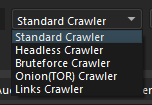
Select Crawler Type
Choose a crawler to use depending on your need. For this tutorial we'll use the Standard Crawler.
Enter Target
Enter target url in this case https://crawler-test.com/.

The crawler will only crawl paths that are after the provided target path.
e.g.
If Target is: https://crawler-test.com/, The crawler will crawl all paths of crawler-test.com
If Target is: https://crawler-test.com/tutorials, The crawler will crawll only paths after /tutotials/* and ignore all other paths.
You should always provide a valid target URL with valid scheme (http,https,ftp) and valid hostname.
If the target URL is invalid the crawler will fail.
Configure the crawler
Click the configuration icon to access and configure crawler settings.
Make sure you uncheck(unset) the proxy if you are not using proxy for the current crawl as all request will be directed towards the proxy if you have set one and it is very easy to forget that you previously set to use a proxy.
Start Crawling
Click the [Start] button to begin the crawl. The crawler will immediately start processing the target.
Monitor Progress
Watch the progress indicator in the right corner:
Progress: <pages_crawled> / <total_pages>
Control Crawling
While crawling, you have several control options:
Pause Crawler
- Click
[Pause]to temporarily stop crawling - Already-sent requests will complete
- Pages in queue remain for resume
Resume Crawler
- Click
[Resume]to continue from where you paused - The crawler picks up immediately
Stop Crawler
- Click
[Stop]to terminate the crawl completely - Waits for in-flight requests to complete
- Cannot be resumed - must start fresh
Results
Display and analysis of crawled pages.
Sitemap
All the results from Crawling will be displayed on SpiderSuite's Sitemap.
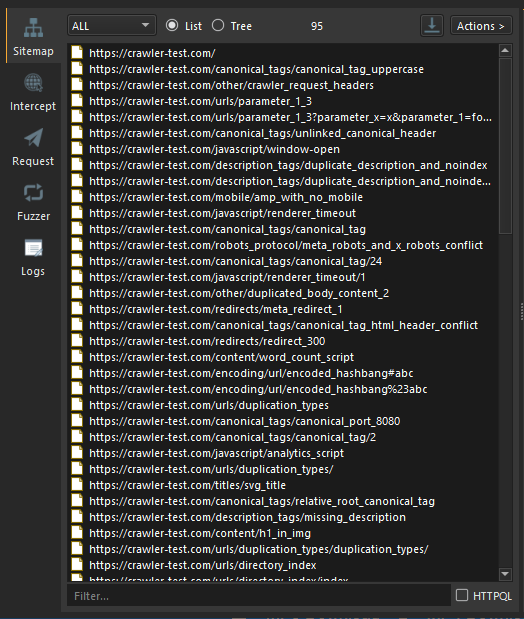
The actual pages are already saved on SpiderSuite's current project database (.sspd) file.
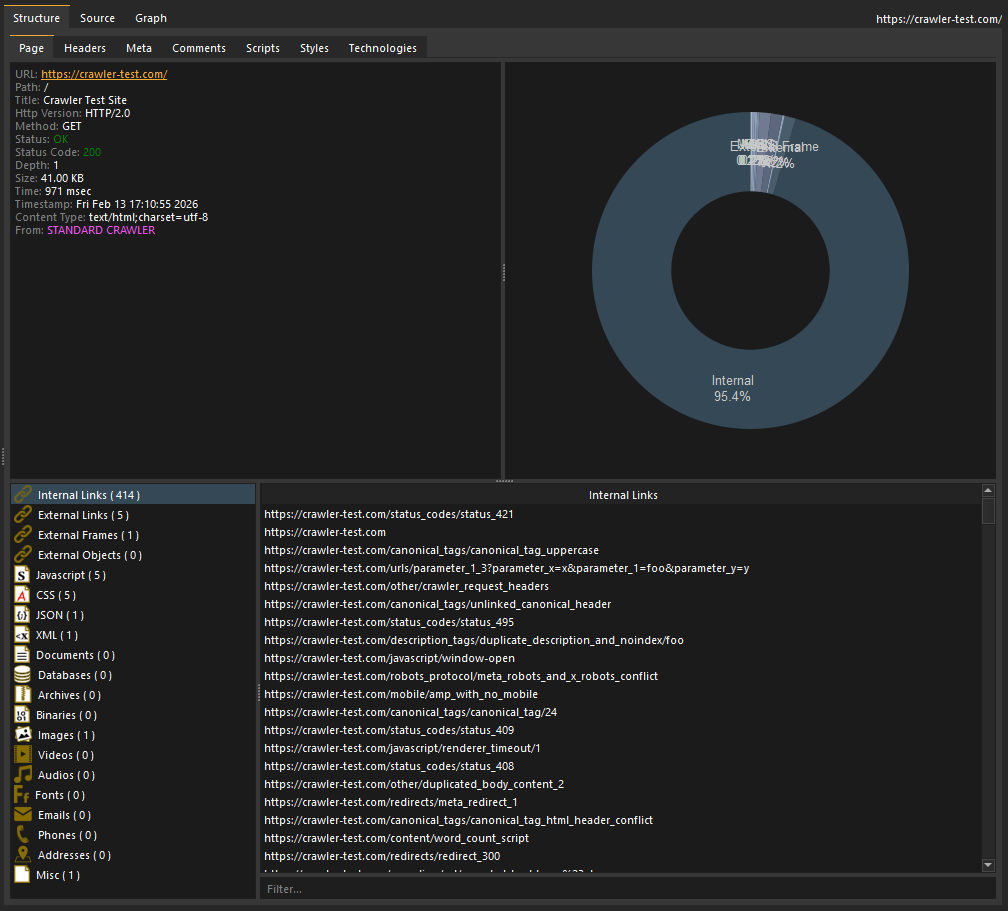
To view content of any page on the sitemap simply click on it and all its content will be displayed on the structure and source tab
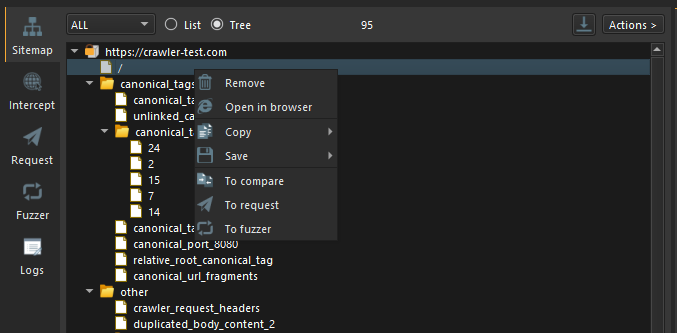
You can perform desired actions on a page on sitemap by right clicking on it and choosing the action you want to perform.
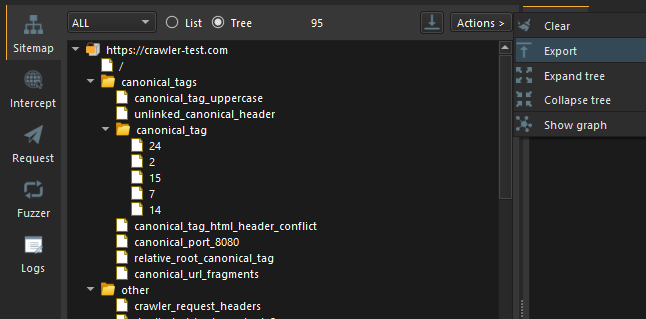
Or You can perform desired actions on the entire list on sitemap by clicking on the Actions button. Please note that the Actions button is only activated if there are links on the sitemap.
Structure
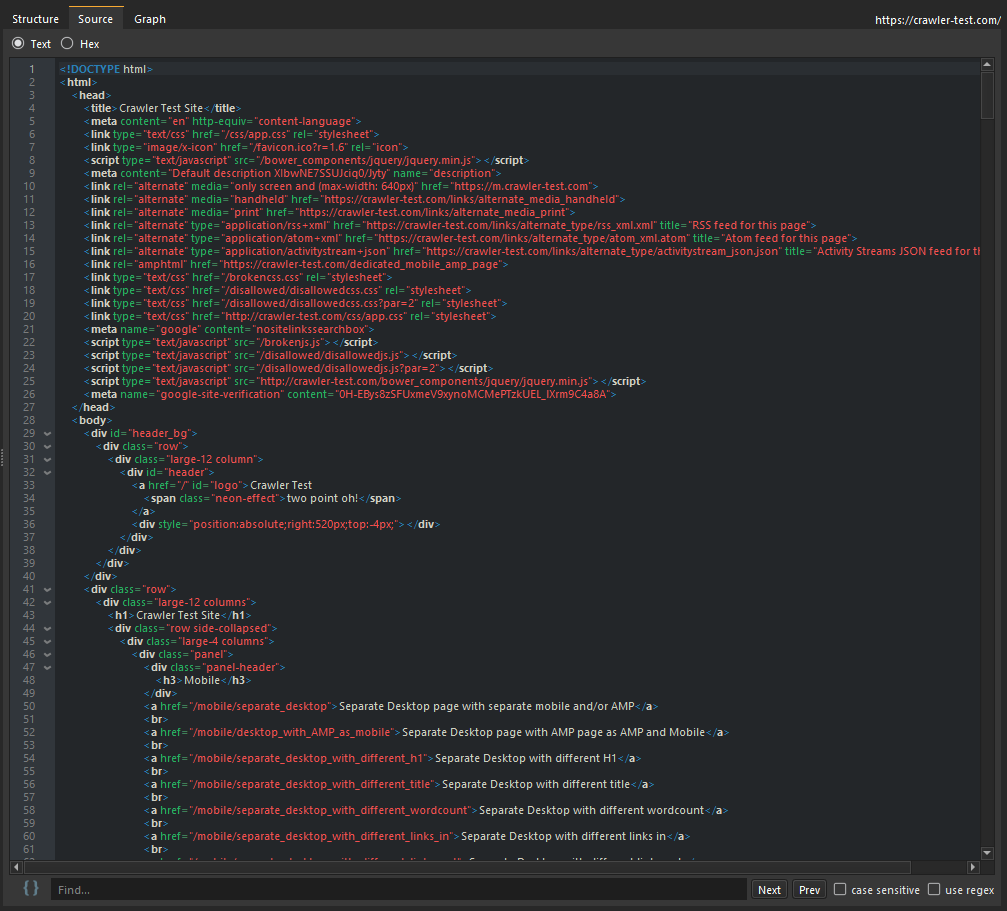
You can browse the structure and source tab to view all the content extracted from the particular page you clicked on.
Source
Graph
SpiderSuite has the capabilities of visualizing the links on the sitemap using a graph and also ability to manipulate the graph to your liking.
- Visualize the Entire sitemap's on a graph.
Simply click on the Actions button and click on Show Graph action to visualize the graph.

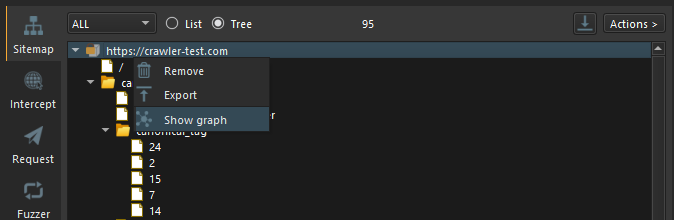
- Visualize a sitemap branch on a graph.
First change the Sitemap's view to Tree view.
Then Simply right click on the branch you want to visualize and click on Show Graph. This will only show the graph for that particular choosen branch.
The Graph
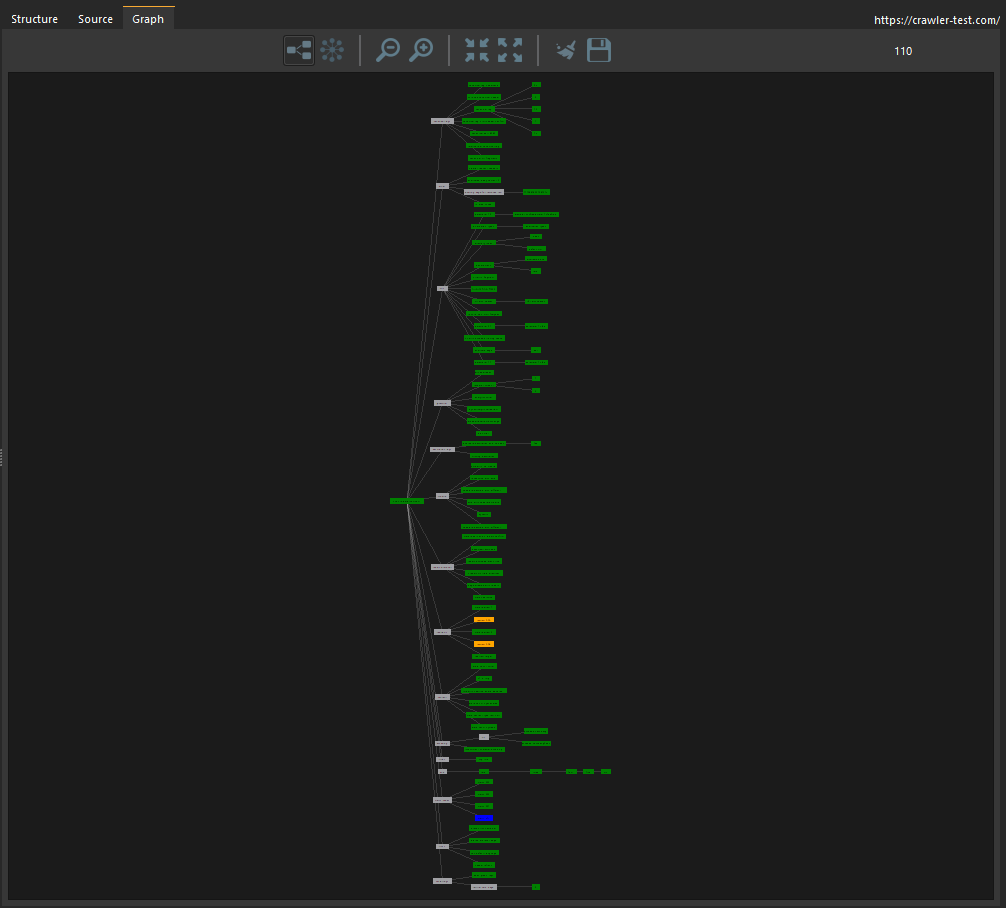
You can manipulate the graph to you linking by simply clicking on the action icons on graph menu bar and set your desired configurations.
Conclusion
This is just a brief guide on how to get starting with crawling using SpiderSuite. As I know getting started with a new software can sometimes be hard to do but i have tried to design SpiderSuite to be easy to use and I will continue to write many articles and blog posts on the use cases of SpiderSuite.
This article will be modified as days go on, so please revisit this post to see if there are any updates.
Thank you for your time.